WhatsApp
 Pinterest
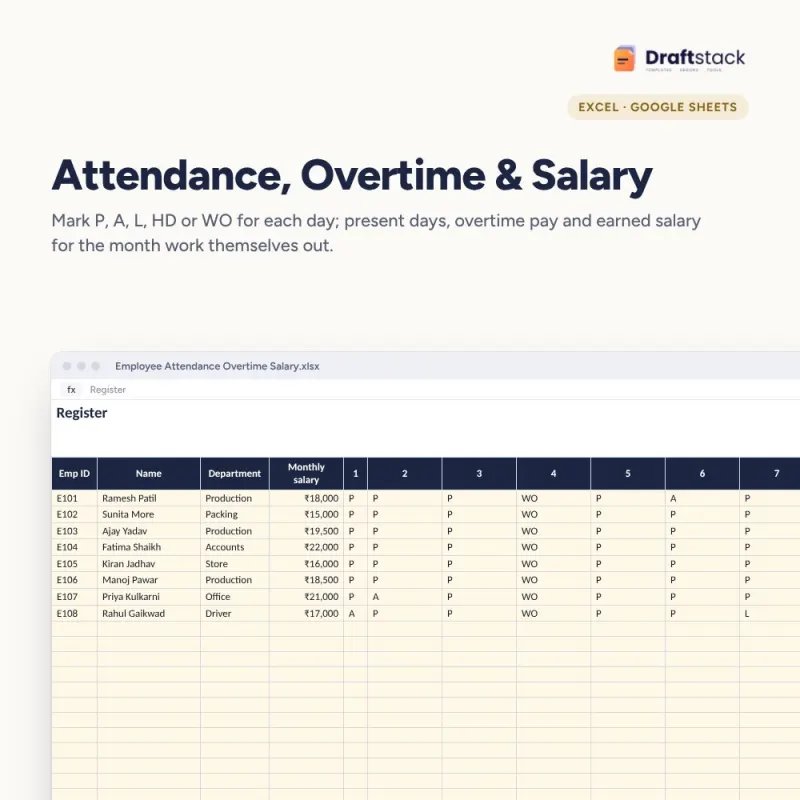
Employee Attendance, Overtime & Salary Register (Excel)
A monthly attendance register that also works out pay: mark each day with a drop-down and get present days, paid leave, absences, overtime pay and earned salary for every employee.
₹112₹499Save ₹387 (78%)
Inclusive of all taxes · One-time payment · Instant download
See a free sample (PDF) Diwali Sale: 25% off, ends 09 Nov, 12:00 AM
Instant downloadOn screen + email
Secure paymentUPI · Cards · Net Banking
7-day helpFix or refund if faulty
Perfect for
Small factories and workshopsShops, hotels and offices with monthly staffHR and accounts assistants
What you get2 × .xlsx (blank + sample)
Works withMicrosoft Excel · Google Sheets · WPS Office
DeliveryInstant download
LicencePersonal & own-business use
 Get the whole Mega BundleCareer, Skills & Money Mega Bundle: Resume, Study, AI, Office & Tax Tools · ₹3,549 · you save ₹9,846See →
Frequently bought together
 This item: Employee Attendance, Overtime & Salary Register (Excel)₹112
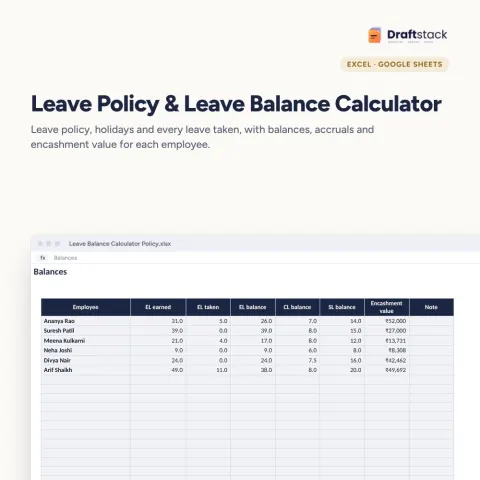
 Leave Policy & Leave Balance Calculator (Excel)₹224
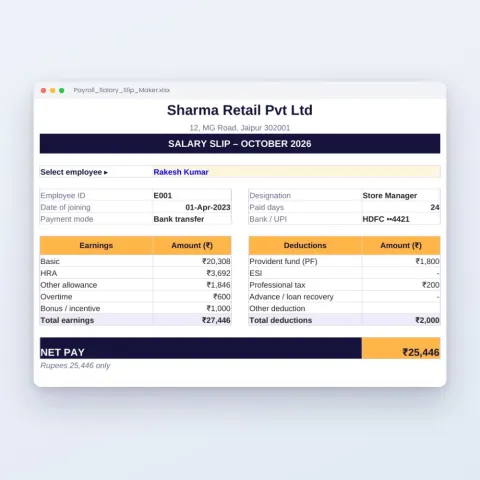
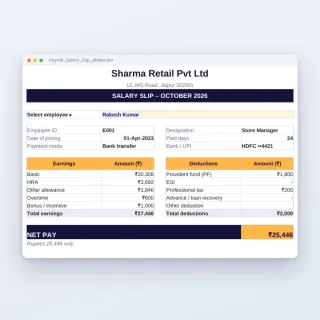 Payroll & Salary Slip Maker (Excel) with PF, ESI & PT₹187
All three: ₹523Sale prices
Most small factories and offices mark attendance on paper and then calculate salaries by hand at month end, with mistakes and arguments. This register does both in one sheet.
What it does
- 31 day columns with a drop-down: P present, A absent, L paid leave, HD half day, WO weekly off, H holiday
- Counts present days (half days count as half), paid leave, offs and absences
- Earned salary from monthly salary, days to divide by (31, 30 or 26 as your policy) and payable days
- Overtime pay from OT hours, hours per day and the OT rate (2× by default)
- Gross pay and a red flag for 3 or more absences
- Summary by department with headcount, gross pay, OT and average attendance
Who it suits
Small factories, workshops, shops, offices, hotels and contractors with daily-rated or monthly staff.
What's inside
Everything you get
01
Register
31 days with drop-downs, OT and pay
02
Summary
Department totals and attendance %
03
Settings
Salary days, hours and OT rate
04
Blank + sample
Sample October for 8 staff
Files in your download
- XLSXEmployee_Attendance_Overtime_Salary.xlsx24 KB
- XLSXEmployee_Attendance_Overtime_Salary_SAMPLE.xlsx25 KB
How to use
Start in 5 simple steps
A step-by-step guide is also included inside your download.
- 1
Set the month and rules
Days, hours, OT rate
- 2
Add your staff
With monthly salary
- 3
Mark every day
From the drop-down
- 4
Type OT hours
At month end
- 5
Pay from gross pay
Deductions in your payroll
FAQ
Questions about this product
Which days count for pay?
Present (half days as half), paid leave, weekly offs and holidays. Absences are not paid.
Can I divide salary by 26 days?
Yes. Change 'Days to divide salary by' on Settings to 26, 30 or the days in the month.
How is overtime calculated?
Monthly salary ÷ days ÷ hours per day × OT rate × OT hours. The default OT rate is 2×; change it to your policy or state rule.
Does it deduct PF and ESI?
No. It gives gross pay. Use our Payroll & Salary Slip Maker for PF, ESI, PT and slips.
How many employees can I add?
60 in each file. Make a copy for each month.
How do I get the files after payment?
A download button appears on screen right after payment, and the link is emailed to you. You can also download again any time from My account.
Can I use it on my phone?
Yes. It works with Microsoft Excel, Google Sheets, WPS Office. Free mobile apps are enough.
What if something does not work?
Write to us within 7 days with your order number. We will fix it, send a working file, or refund you.
Our promiseEvery file is tested before launch. If something doesn't work, we fix it or refund you within 7 days. Refund policy
Complete the set
Goes well with this
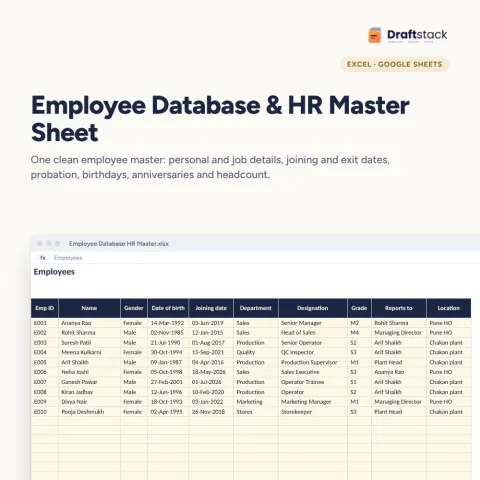
Excel & Sheets
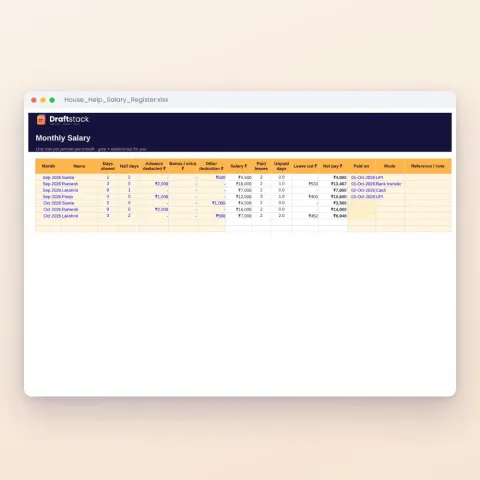
House Help Salary & Attendance Register (Excel): Maid, Cook, Driver, Nanny
Sale₹74₹24970% off